Choose Your Product
Select your platform to start the Quick Start Guide.
DevKit 3.0 Content
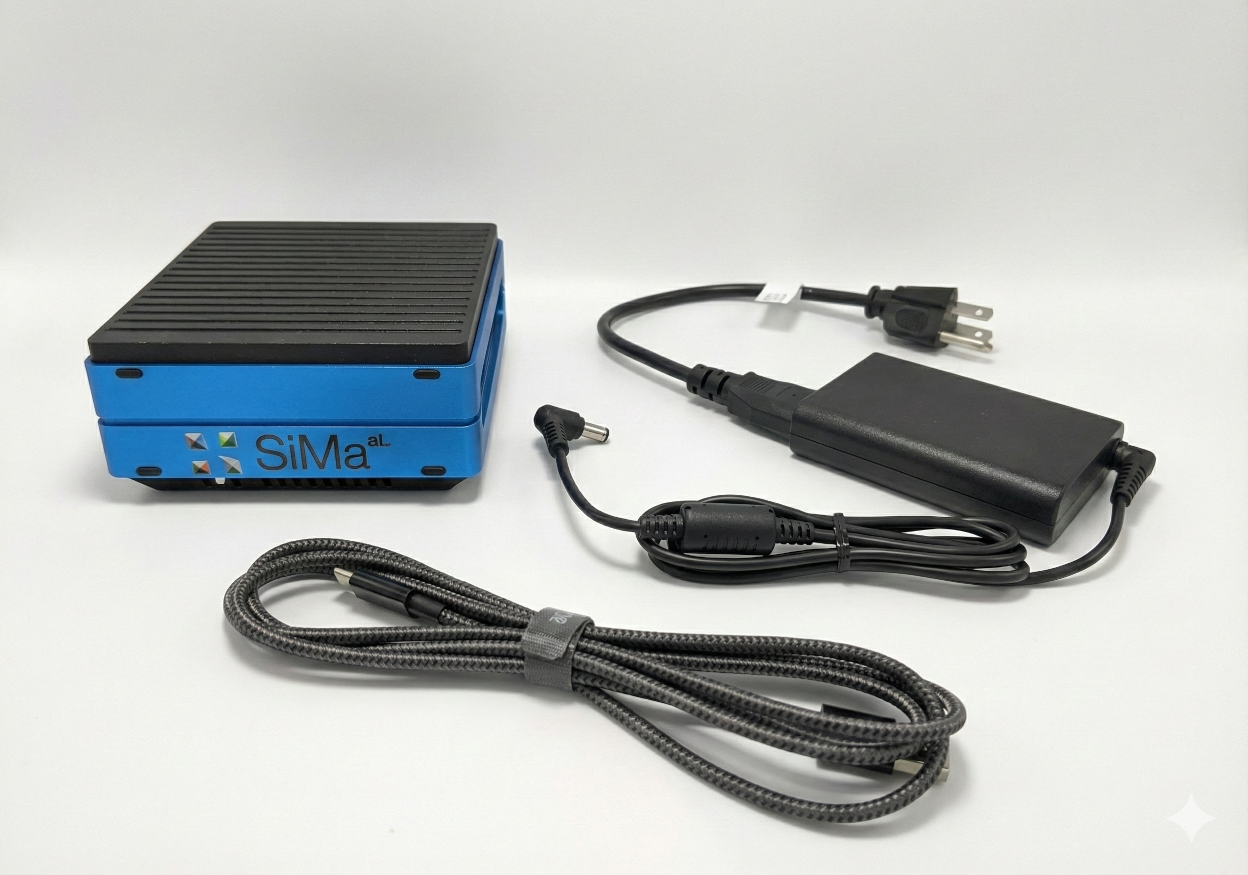
The following items are included in the DevKit 3.0, Click on each item to learn more.
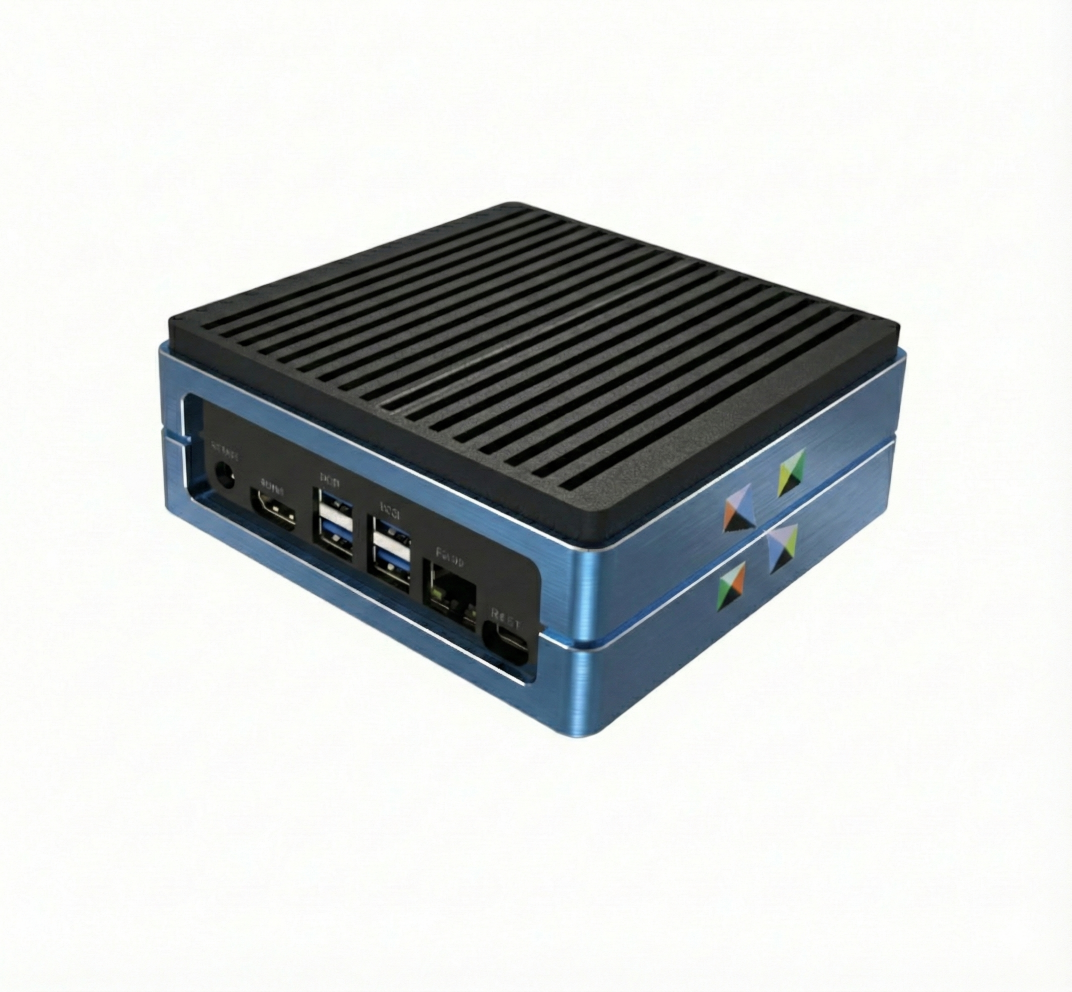
Interfaces
Click on each interface to learn more.
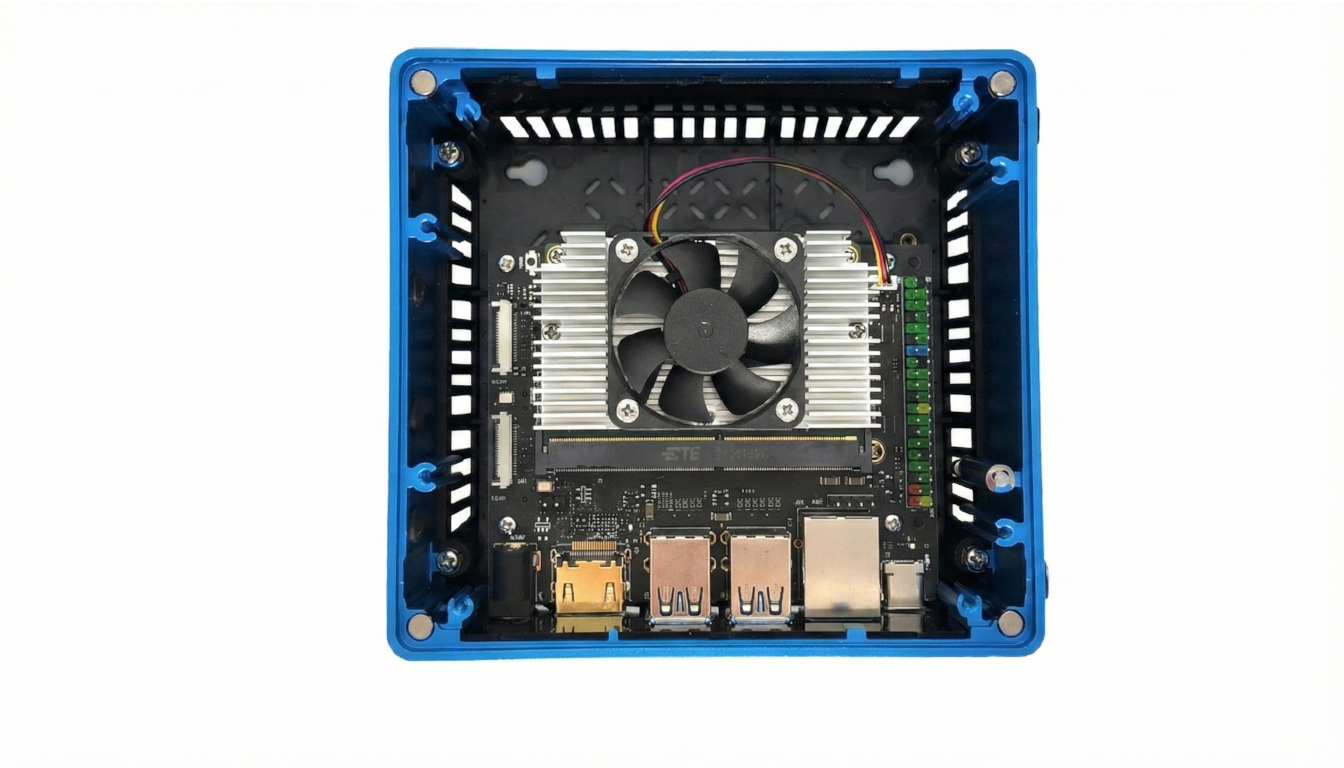
Inside The DevKit
Hover or tap on each marker to explore major components inside the SiMa DevKit. For detailed pinout and hardware information, see the Modalix SOM Carrier Board Hardware Reference (PDF) .
Local Setup
In the standalone setup configuration, the Modalix DevKit 3.0 is used like a Linux PC. No network connection is required. Click on each item for more information.
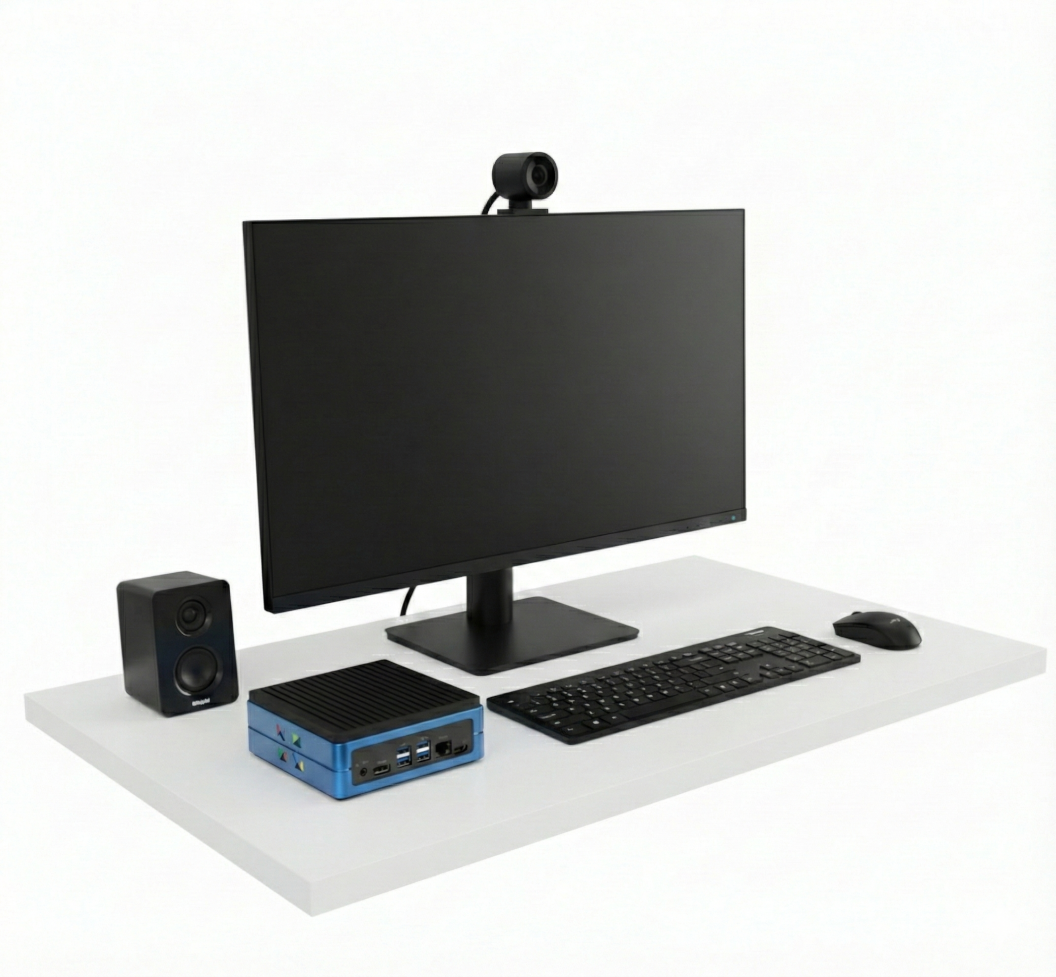
Connect the Power supply to the 12V Power input and power up the DevKit.
Login & Run the Demo
-
Use the default username
simaand passwordegdeaito log in. -
Run the Demo
- This demo requires a camera and a speaker.
- Click the “Demo” icon on the desktop to launch the demo.
- Ensure that you see a live camera image.
- Ask a question in the chat, for example: “What do you see in the image?”
Remote Setup
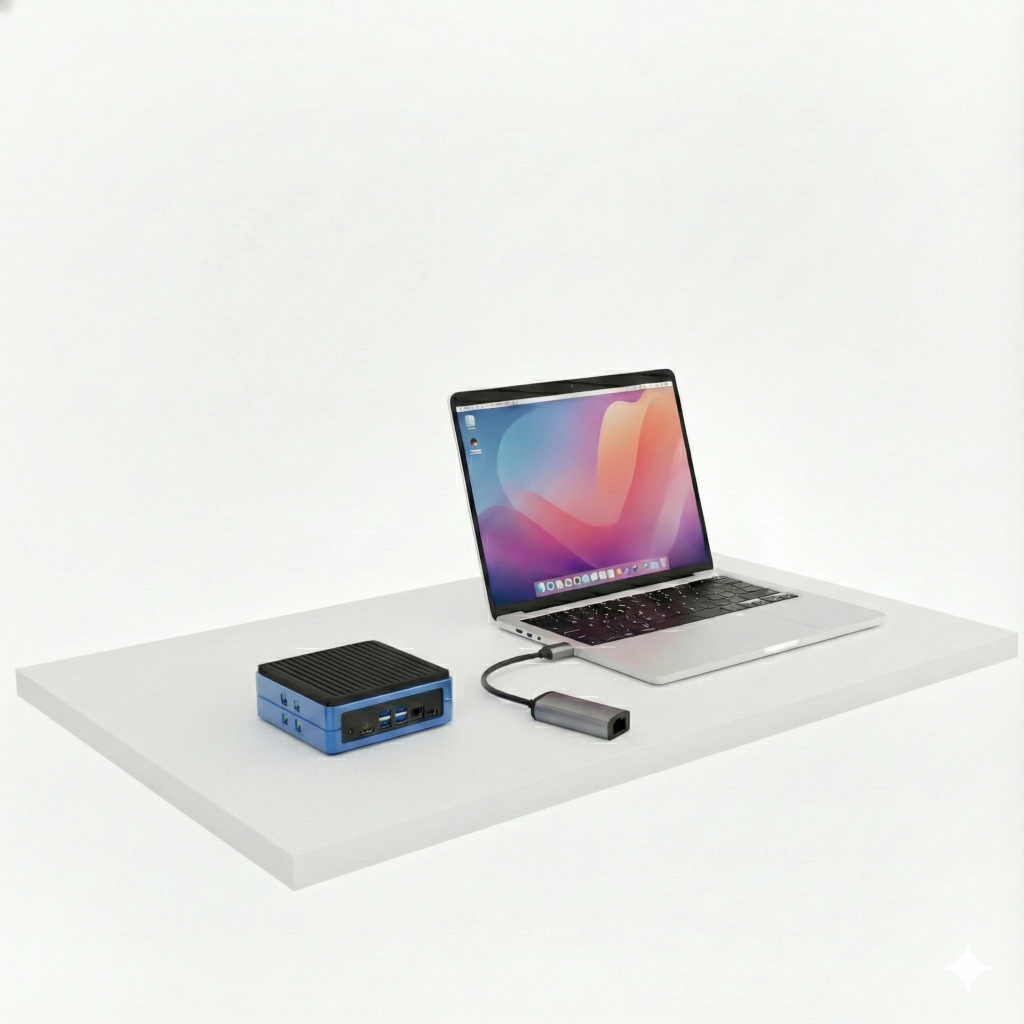
Configure your DevKit for remote access using an external PC or Laptop. An Ethernet cable (not included in the Devkit) is required. The Devkit will be accessed through a web browser to operate a Demo.
http://modalix.local:8800
or use the DevKit’s IP address in Chrome to access the remote web UI.
Prepare for Development
Once your DevKit is connected and powered up, you can begin developing with the SiMa Modalix DevKit 3.0.
1️⃣ Sign Up on the SiMa Developer Portal
Create an account at developer.sima.ai. After registration, your account will require SiMa approval before you can download the SDK and related software.
2️⃣ Install the SiMa CLI
Download and install sima-cli on your host machine
to access the SDK and developer tools.
Follow the Installation Guide.
3️⃣ Explore the Documentation
Access our technical documentation for hardware, software, and code examples at docs.sima.ai.
Troubleshooting
Common issues and solutions to help you get your SiMa DevKit running smoothly.
Make sure your laptop and the DevKit are connected to the same network.
Try opening
http://modalix.local:8800
in Chrome.
The modalix.local address relies on mDNS, which may not work on all operating systems (especially Windows).
If modalix.local is not reachable:
-
After installing
sima-cli, runsima-cli device discoveron your host machine (while connected to the DevKit). This command lists all detected DevKits and their IP addresses. -
If no device appears, connect to the DevKit’s serial console from your host machine by running:
sima-cli serial -
Log in with username
simaand passwordedgeai, then typeifconfigto display the assigned IP address. - The same IP address can also be found under the Settings tab in the Local Setup interface once the DevKit is running.
If sima-cli cannot discover your DevKit, it's possible that your DevKit runs an older version of the firmware. Check the next topic to learn how to update the DevKit.
Depending on the manufacturing date, your DevKit may be running an older firmware version that does not match the demo procedure described above. If your DevKit is running version 1.7, it must be converted to the 2.0 eLxr release before you can follow the Quick Start guide and try out the demos.
To check your current firmware version and determine whether conversion is required, please follow the instructions in the conversion guide below.
DevKit 1.7 → 2.0 eLxr Conversion GuideThe out-of-the-box demo experience on the Modalix DevKit can be updated directly on the device without reflashing the system image. This is supported on DevKits running the eLxr release.
To update the demo suite, log in to your eLxr DevKit and run the following command:
cd /tmp && curl -O https://tools.modalix.info/setup-oob.sh && bash setup-oob.sh
This script downloads and installs the latest version of the demo suite, ensuring that your device is up to date with the current out-of-the-box experience.
sima
and password egdeai.
If these were changed, contact your administrator or SiMa support.
Supported Hosts
Ubuntu 22.04 is the supported platform for PCIe host setup. Windows 10 and Windows 11 support is currently in beta testing.

Ubuntu 22.04
Supported for production host setup.

Windows 10 / 11
Driver flow is available in beta testing.
Install the Card
Install the PCIe card and connect bring-up interfaces before software setup.
Host Setup
Install the host driver package based on your host OS.
sima-cli first on your host machine.
Follow the setup guide:
sima-cli installation.
Linux host:sima-cli install drivers/linuxsima-cli install drivers/windowsVerify and Test
Use device discovery to confirm PCIe enumeration and connectivity.
sima-cli device discover SiMa PCIe Devices Detected
┏━━━━━━━┳━━━━━━━━━━━━━━━━━━━━┳━━━━━━━━━━━┳━━━━━━━━━━━┳━━━━━━━━━━━━━━┓
┃ OS ┃ Device Name ┃ Vendor ID ┃ Device ID ┃ Location ┃
┡━━━━━━━╇━━━━━━━━━━━━━━━━━━━━╇━━━━━━━━━━━╇━━━━━━━━━━━╇━━━━━━━━━━━━━━┩
│ linux │ Modalix HHHL v2 1R │ 0x1f06 │ 0x2123 │ 0000:04:00.0 │
└───────┴────────────────────┴───────────┴───────────┴──────────────┘
Detected PCIe virtual ethernet. Run throughput test now? [y/N]: y
🔗 Testing 10.0.0.1 -> 10.0.0.2 ...
✅ Throughput: 4.28 Gbps (healthy)Troubleshooting
Placeholder troubleshooting tips for common PCIe issues.