Software Installation
This section describes how to get your host development environment set up with the necessary software including the system requirements before you begin installing the software.
The pre-requisites for installing the Palette software are listed in the System Requirements section.
Note
Before installing the SDK, ensure your SiMa device is running firmware that is compatible with the SDK version being installed. Using mismatched firmware and SDK versions may result in unexpected behavior or incompatibility. See Firmware Update to update your device firmware if needed.
Online Installation
Use this method when the host machine has a working internet connection.
Prerequisites
Ensure the following are installed before proceeding:
sima-cli
Note
Please install or upgrade sima-cli before continuing. This guide is intended for use with the latest sima-cli version.
Docker
The Palette software runs inside Docker. Install Docker Engine or Docker Desktop before continuing.
To install Docker Engine manually:
sima-user@sima-user-machine:~$ sudo apt-get update
sima-user@sima-user-machine:~$ sudo apt-get install docker-engine
If you have a previous Palette installation running, stop the existing container before installing a new version to ensure a clean upgrade.
Important
In customer environments with strict firewall policies, coordinate with your IT team to allow outbound HTTPS (port 443) access to the following URL:
https://783709528641.dkr.ecr.us-west-2.amazonaws.com
Step 1. Select SDK containers to install
Run the following command to start the installation. You will be prompted to select which SDK components to install — for example, a Modalix-focused developer may skip the Yocto SDK.
sima-user@sima-user-machine:~$ sima-cli install sdk
When prompted, use the arrow keys and Space to select components, then press Enter to confirm:
✅ sima-cli is up-to-date
✅ OS version 22.04 for ubuntu is compatible.
✅ Metadata validated successfully.
╭─  Select one or more opt-in resources to download ───────────╮
│                                                              │
│  Use ↑ / ↓ to navigate                                       │
│  Press Space to select or deselect items                     │
│  Press Enter to confirm selection                            │
│  Tip: You can select multiple items before pressing Enter.   │
│                                                              │
╰──────────────────────────────────────────────────────────────╯
📦 : Use Space key to toggle selection(s)
❯ ◉ MPK CLI Tools (GStreamer pipeline builder and device manager)
○ Model SDK (Model compilation and quantization)
○ eLxr SDK (Cross-compile for eLxr Linux)
○ Yocto SDK (Cross-compile for Yocto Linux)
○ 🚫 Skip
Warning
You may bypass the OS compatibility check using the --force option.
Proceed at your own risk — this configuration is unsupported and may cause unexpected behavior.
sima-user@sima-user-machine:~$ sima-cli install sdk --force
Step 2. Review the dependencies checklist
After downloading, sima-cli automatically verifies that your system meets the minimum
requirements. Review all warnings before continuing.
╭──────────────────────╮
│ 🔧 SiMa.ai SDK Setup │
╰──────────────────────╯
🔍 Checking SiMa SDK Bridge Network...
✅ SiMa SDK Bridge Network found.
✅ Python 3.10.12 (Required ≥ 3.10.0)
✅ Docker 28.3.2 (Required ≥ 20.10.10)
✅ 14 cores / 31.0 GB RAM (Required ≥ 4 cores / 16 GB)
⚠️  Firewall may restrict Docker or SDK communication.

                   System Requirements Report
┌───────────┬───────────────────┬──────────────┬───────────┐
│ Component │ Required          │ Found        │ Result    │
├───────────┼───────────────────┼──────────────┼───────────┤
│ Python    │ ≥ 3.10.0          │ 3.10.12      │ ✅ PASS   │
├───────────┼───────────────────┼──────────────┼───────────┤
│ Docker    │ ≥ 20.10.10        │ 28.3.2       │ ✅ PASS   │
├───────────┼───────────────────┼──────────────┼───────────┤
│ CPU/RAM   │ ≥4 cores / ≥16 GB │ 14 / 31.0 GB │ ✅ PASS   │
├───────────┼───────────────────┼──────────────┼───────────┤
│ Firewall  │ Disabled          │ Unverified   │ ⚠️ WARNING │
└───────────┴───────────────────┴──────────────┴───────────┘

❌ Some system checks failed.
Do you want to continue anyway? [y/N]:
Step 3. Complete the SDK setup
Confirm to proceed, then select the SDK images to start. Enter a workspace directory when prompted — this is the directory mounted inside the container.
Do you want to continue anyway? [y/N]: y
⚠️  Proceeding despite warnings.
╭───────────────── 📘 SiMa.ai SDK Image Selection ──────────────────╮
│ • Use ↑/↓ and Space to select one or more images.                │
│ • Press Enter to confirm.                                        │
│ • Containers will be started automatically.                      │
│ • Press CTRL+C to cancel anytime.                                │
╰──────────────────────────────────────────────────────────────────╯
Single SDK version detected: latest_master
? Select SDK images to start: 2 selected

🔍 Checking for running SDK containers...
ℹ️  No running SDK containers found.
Enter workspace directory [/home/sima/workspace]:
✅ Workspace set to: /home/sima/workspace

====================[ 🔄 STARTING: mpk_cli_toolset-latest_master ]====================

✅ Created configuration file at: /home/sima/workspace/config.json
🚀 Starting container 'mpk_cli_toolset-latest_master'
✅ Container started on port 49152.
✅ Container configured successfully.
✅ All selected containers started successfully!

╭─ Post-Installation Summary ────────────────────────────────────────────╮
│ sima-cli sdk setup — Initialize the SDK environment.                   │
│ sima-cli sdk start — Start SDK containers.                             │
│ sima-cli sdk stop — Stop running SDK containers.                       │
│ sima-cli sdk remove — Remove installed SDK containers.                 │
│ sima-cli sdk mpk — Access the MPK CLI container.                       │
│ sima-cli sdk model — Access the Model SDK container.                   │
│ sima-cli sdk yocto — Work inside the Yocto SDK container.              │
│ sima-cli sdk elxr — Work inside the eLxr SDK container.                │
│                                                                        │
│ Tip: Use ``docker ps`` to verify running containers.                   │
│ Setup complete! Run ``sima-cli sdk start`` to begin.                   │
╰────────────────────────────────────────────────────────────────────────╯
✅ Installation completed successfully.
Note
The SDK setup can be re-run at any time using sima-cli sdk setup to modify your
SDK configuration after the initial installation.
Step 4. Access the SDKs
Use sima-cli to enter any SDK container:
sima-user@sima-user-machine:~$ sima-cli sdk mpk
sima-user@sima-user-machine:~$ sima-cli sdk model
You can also run commands directly inside a container by appending a subcommand:
sima@SiMa-AE-002:~/workspace$ sima-cli sdk mpk mpk
Offline Installation
Use this method when the target host has limited or no internet access. The process requires two machines: one with internet access to download the artifacts, and the target host to install them.
Step 1. Download SDK artifacts (internet-connected machine)
On a machine with internet access, run the following commands to download all required installation files:
sima-user@sima-user-machine:~/$ mkdir sdk-install && cd sdk-install
sima-user@sima-user-machine:~/$ sima-cli install sdk -t offline --force
Step 2. Transfer files to the target host
Once the download is complete, transfer the entire sdk-install directory to the target
host using your preferred method (e.g. USB drive, SCP, shared network drive).
Step 3. Install on the target host
On the target host, run the following commands to complete the installation:
sima-user@sima-user-machine:~/$ cd sdk-install
sima-user@sima-user-machine:~/$ python3 install.py && sima-cli sdk setup
Note
The target host must have sima-cli installed before running these commands.
After the setup completes, the SDK environment is ready for use.
Uninstalling the Palette Software
To remove the installed SDK containers, run:
sima-user@sima-user-machine:~$ sima-cli sdk remove
Installing on Windows using Hyper-V
The Palette software supports Windows OS in Hyper-V mode, the setup and installation steps are described below.
Note
The Docker application (Docker Desktop or Docker Engine) must be installed before installing the Palette software.
Follow the link below for downloading and installing the Docker Desktop application. https://docs.docker.com/desktop/install/windows-install/
Use the build version 4.26.1 or lower. See, https://docs.docker.com/desktop/release-notes/ for details.
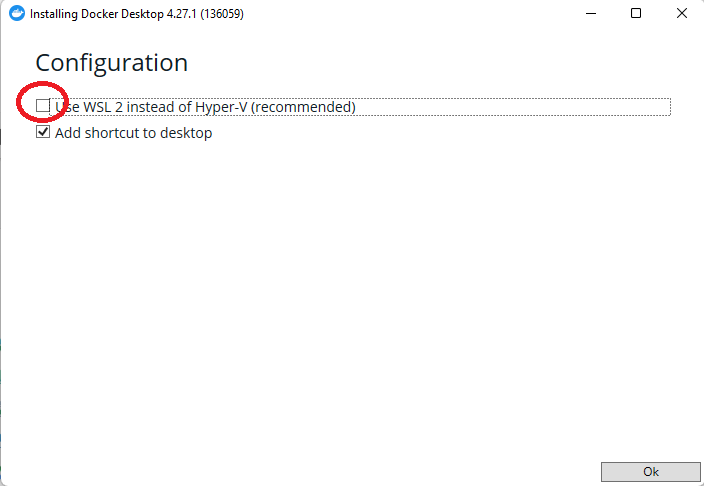
In the Configuration window, do not click in the first checkbox, thereby the Hyper-V option will be enabled in the Docker Desktop application.
Steps
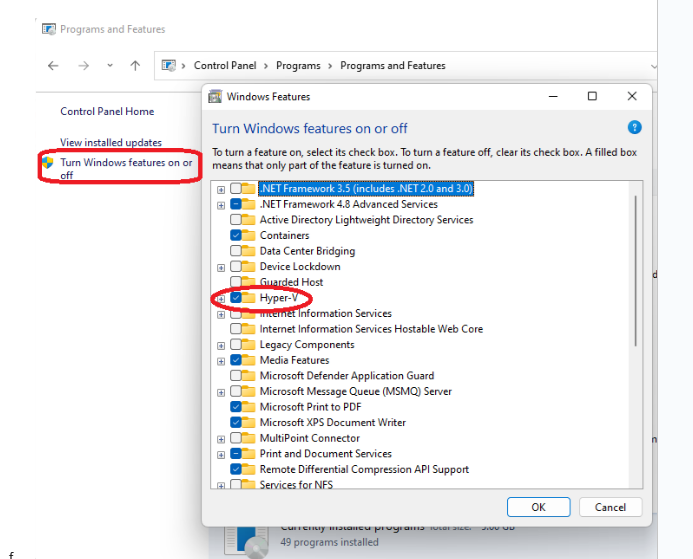
Reboot your PC and make sure that the Hyper-V option is enabled automatically as shown in the below image. If not, please select Hyper-V manually.
Launch the Docker Desktop application and open settings. Under resources, increase the memory to 6 GB as shown in the below image and choose
Apply & Restartoption.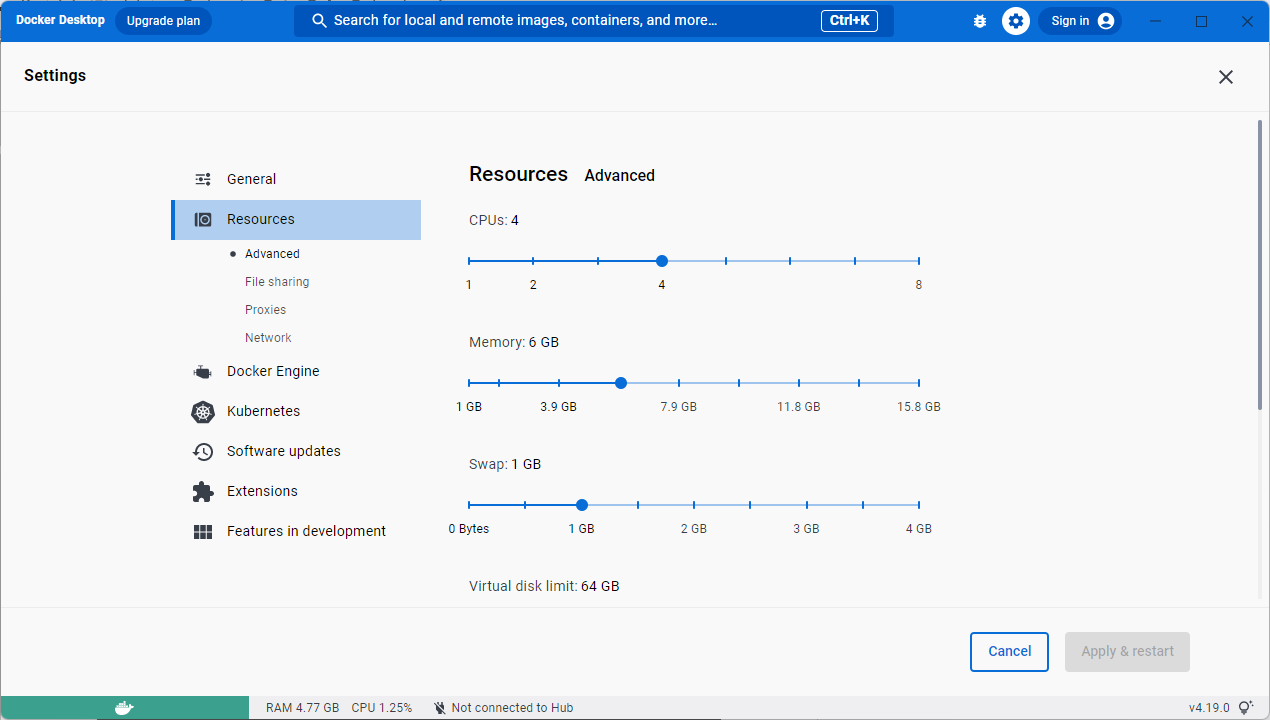
Unzip the Palette software file.
Launch Windows powershell as an administrator and navigate to the sima-cli folder of the downloaded Palette software uncompressed file.
Install the Palette software.
PS C:\Users\SiMaUser\Downloads\2.1.0_Palette_SDK_master_B279\sima-cli> sima-cli install sdk
Enter the workspace directory of your choice (this is the directory which gets mounted in the container) and wait untill installation completes. Typical flow is mentioned below.
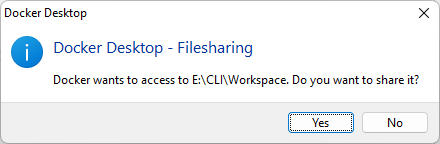
If prompted for file sharing permission from Docker, accept it.
Launch the Palette software.
PS C:\Users\SiMaUser\Downloads\2.1.0_Palette_SDK_master_B279\sima-cli> sima-cli sdk mpk