simaaisrc
Description
GStreamer plugin reference: simaaisrc
This is a plugin which supports memory allocation on the SiMa device (compute blocks namely A65, EV74, and the MLA). It reads file(s) from the file system and puts it into the device memory for other plugins (like process-cvu) to read. Due to memory allocation support, this plugin is useful in debugging during pipeline development.
This plugin also reads the source file and pushes it into the pipeline. It is commonly used for playing video/audio files, processing images, or handling raw data streams.
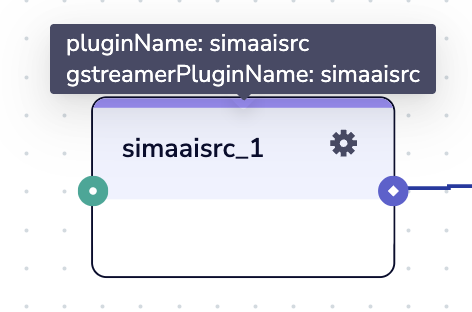
Plugin Configurations
All plugins in Edgematic have options and configurations that can be accessed via:
The configuration icon on the top right of each plugin (
 ).
).The source code found in .
Plugin configuration options
The plugin configurator provides 3 tabs:
GENERAL:
Host ProcessorThe processor this plugin executes in. In this case, on the Arm cores or
APU.
delayHow long to delay between sending outputs out of the source pad.
input-filesArea to drag-and-drop or select the input files that will be sent out by the plugin.
Max 100.
Uploaded files:The files that have been uploaded.
loopif
true, after exausting all of the inputs, the plugin will start again from the first input. Iffalse, the plugin will send out EOS after going through the inputs once.
CONFIGURATION: This is where the input and output nodes are specified.
ADVANCED:
num-buffersThe number of output buffers this plugin will allocate (Default: 5).
indexHow long to delay between sending outputs out of the source pad.
node_nameName of the plugin for downstream elements.
mem_targetType of SiMa memory that will be used for allocation. Can be 0, 1, 2.
Plugin source configurations (advanced)
If you wish to directly alter the code or configurations for the plugin, simply click on the plugin on the canvas and the source will be highlighted in orange on the left panel.