Out of the Box Experience
The Modalix DevKit ships with two demo applications preloaded and ready to run — no installation or SDK setup required. This is the fastest way to experience SiMa’s platform.
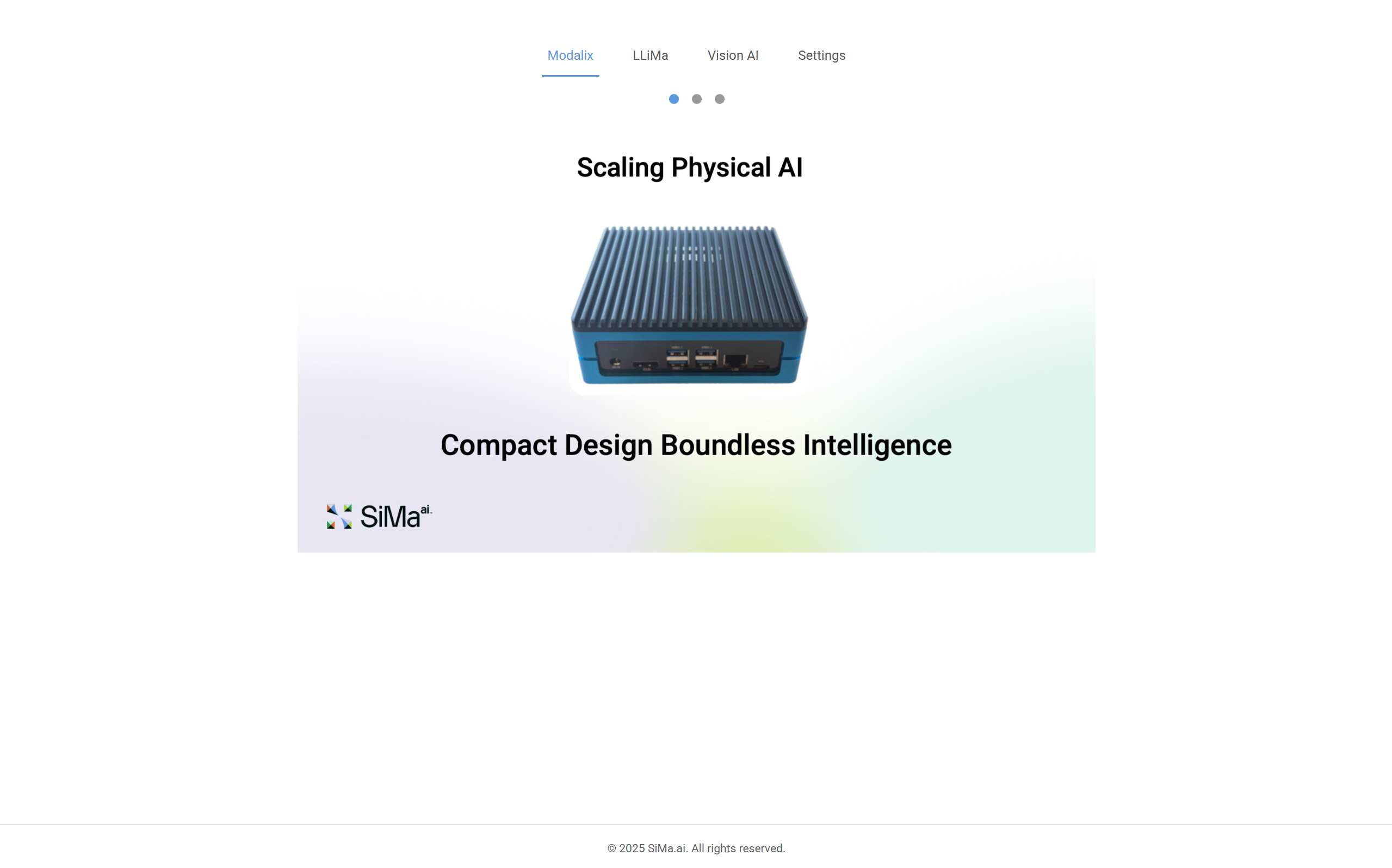
Demo |
Description |
|---|---|
Real-time processing of 16 simultaneous video streams with object detection and pose estimation models (YOLOv9s, YOLOv8, YOLOv7). |
|
Multimodal large language model demo powered by Gemma 3, supporting text, image, and voice input with RAG support. |
Prerequisites
Modalix DevKit powered on and connected to a network.
A computer on the same network with a Chrome browser.
The DevKit’s IP address — find it using one of the methods below.
How to find the DevKit IP address
From the serial console, run:
davinci:~$ ip a | grep inet
Look for the inet address on the end0 interface, for example 192.168.91.181.
From the host machine, scan the local subnet using nmap:
sima-user@sima-user-machine:~$ nmap -sn 192.168.1.0/24 | grep report
Replace 192.168.1.0/24 with your actual subnet. The DevKit will appear as one of the discovered hosts.
For full network configuration options, see Configure DevKit Network.
Launch the Demo Portal
Open Chrome on your computer and navigate to:
http://<modalix-ip>:8800
The demo portal will load and present both available demos. Select the one you want to try.
Note
If the portal does not load, verify the DevKit is powered on and reachable. You can test connectivity by pinging the DevKit’s IP address from the host machine.
Reinstall or Update
If the DevKit has been wiped, reflashed, or the preloaded demos are missing, run the OOB setup script directly on the DevKit:
modalix:~$ cd /tmp && curl -O https://tools.modalix.info/setup-oob.sh && bash setup-oob.sh
Connect the DevKit to the Internet first (via SSH or serial console). If a previous OOB version is detected, the script prompts for upgrade confirmation — type Yes. Installation requires authorization: the script prints a code and an auth.sima.ai URL — open the URL in a browser, log in with your developer portal credentials, and confirm the code.
For advanced setups (live RTSP from a host, rebuilding a demo from source, or RAG File Processing Server), follow the per-demo instructions on the Run Demos page:
Multichannel Vision AI demo — host RTSP setup, pipeline install, and OptiView setup.
VLM demo — LLiMa install on the Modalix DevKit, with optional RAG File Processing Server setup.